IAM — Users, Roles & Scopes
The IAM section of the Insight portal is the browser-based interface for managing users, roles, and permission scopes. It mirrors the IAM concepts documented in the Security section.
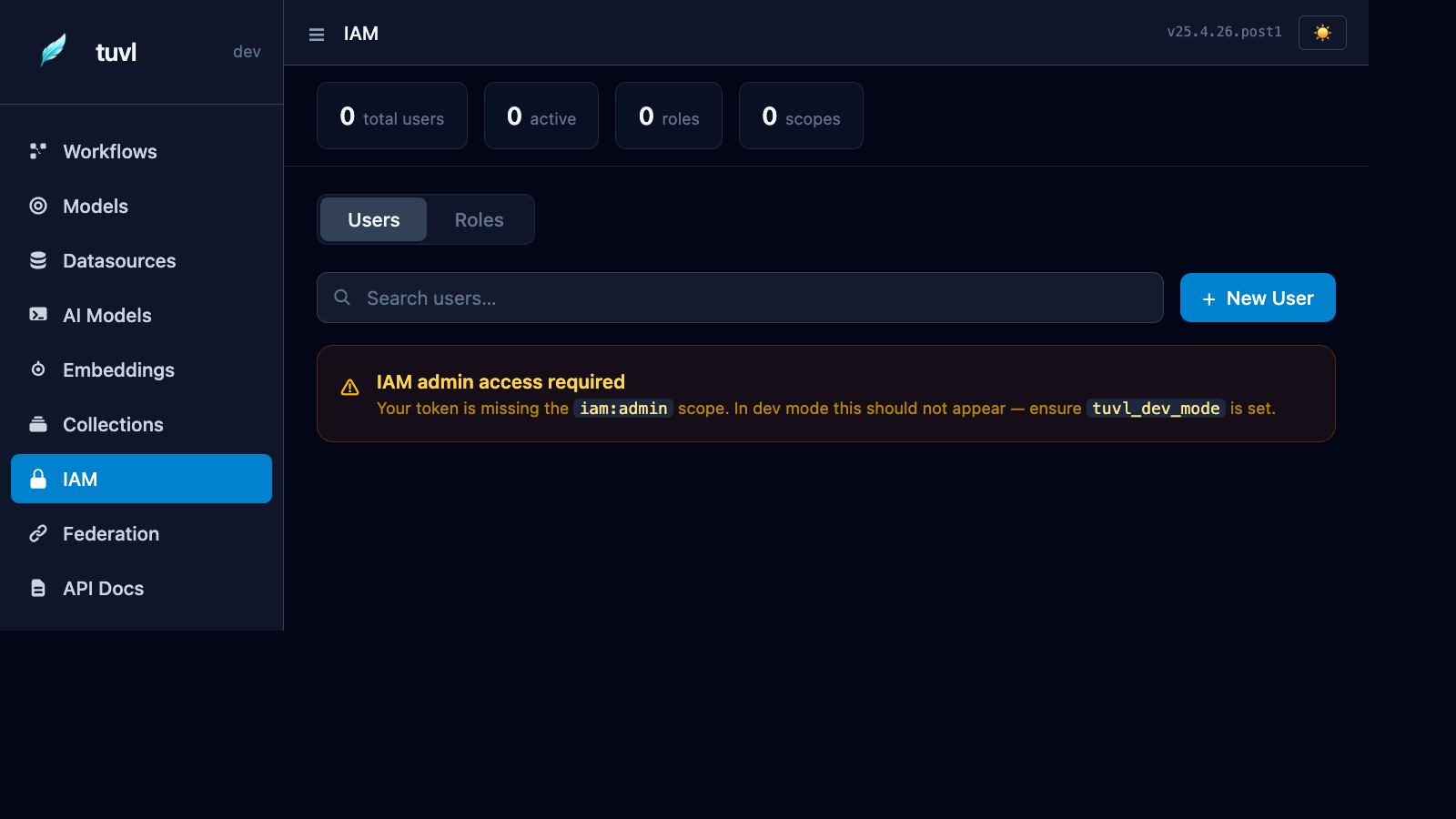
Overview
The dashboard shows four counters at the top:
| Counter | Meaning |
|---|---|
| Total users | All users in the database |
| Active | Users who have logged in at least once |
| Roles | Total number of defined roles |
| Scopes | Unique scopes across all roles |
Below the counters, tabs switch between the users and roles views.
Users
Listing users
The users table shows email, display name, authentication method (password / federated), assigned roles, and whether the account is active. Use the search box to filter by email or name.
Creating a user
Click + New User to open the creation dialog:
| Field | Description |
|---|---|
| Unique email address — used as the login username | |
| Password | Initial password (bcrypt-hashed at rest) |
| Roles | One or more roles to assign at creation |
| Active | Whether the account is immediately usable |
Editing a user
Click any row to open the user detail panel. You can:
- Reset the password
- Add or remove roles
- Deactivate the account (without deleting it)
- Delete the user permanently
Roles
Listing roles
The roles tab shows every defined role and the scopes it grants.
Creating a role
Click + New Role:
| Field | Description |
|---|---|
| Name | Unique role identifier (snake_case) |
| Scopes | Space- or newline-separated list of resource:action strings |
Built-in scopes
| Scope | Gates |
|---|---|
iam:admin |
All /auth/admin/* endpoints, including this IAM panel |
All other scopes are application-defined. Create any resource:action strings that match what your workflows and custom nodes check via ctx["_scopes"].
Access requirements
iam:admin scope required
To view or modify users and roles through the portal, your session token must carry the iam:admin scope. In dev mode this is granted automatically to the dev-key session. If you see the "IAM admin access required" banner, check that TUVL_DEV_MODE=true is set and that you are logged in with the dev key.
Bootstrap
When running tuvl for the first time against an empty database, use the bootstrap endpoint to create the first superadmin before any users exist:
curl -X POST http://localhost:8000/auth/bootstrap \
  -H "Content-Type: application/json" \
  -d '{"email": "admin@example.com", "password": "change-me-now"}'
See the IAM reference for full details.
REST API
All IAM operations are also available via the REST API under /auth/admin/:
| Method | Path | Action |
|---|---|---|
GET |
/auth/admin/users |
List all users |
POST |
/auth/admin/users |
Create a user |
GET |
/auth/admin/users/{id} |
Get a user |
PUT |
/auth/admin/users/{id} |
Update a user |
DELETE |
/auth/admin/users/{id} |
Delete a user |
GET |
/auth/admin/roles |
List all roles |
POST |
/auth/admin/roles |
Create a role |
DELETE |
/auth/admin/roles/{id} |
Delete a role |